Skip to content
Tutorials

How to Create an Interactive Product Demo in Under 2 Minutes

A step-by-step guide to creating interactive product demos quickly using a browser extension, editor, and one-click publishing. No code required.

Fionn LennonMarch 7, 20268 min read

Creating an interactive product demo takes three steps: capture your product with a browser extension, customize the steps in an editor, and hit publish. With the right tool, the entire process takes under two minutes - no code, no design skills, no video editing. This guide walks you through exactly how to do it.

Interactive demos have become essential for B2B software companies. The Demand Gen Report found that buyers engage with 3-7 pieces of content before ever talking to a sales rep. An interactive demo is one of the highest-converting content types you can offer because it lets prospects experience your product firsthand. HubSpot research confirms that interactive content gets 2x more engagement than static content like PDFs or screenshots.

The problem has always been that creating demos was slow and painful. You either needed engineering resources to build a sandbox environment, or you spent hours stitching together screenshots in a clunky tool. That has changed. Modern platforms like Aceframe make the process almost instant.

What do you need before creating an interactive demo?

Before you start, make sure you have:

  • A clear goal for the demo. What feature or workflow do you want to showcase? The best demos focus on one specific use case rather than trying to show everything.
  • A browser extension installed. Most interactive demo tools (including Aceframe) use a Chrome extension to capture your product. Install it before you begin.
  • Your product ready to demo. Log into your product and navigate to the starting point of the workflow you want to capture. Use a clean demo account with realistic-looking sample data if possible.

That is it. No design tools, no video software, no coding environment.

Step 1: Capture your product with the browser extension

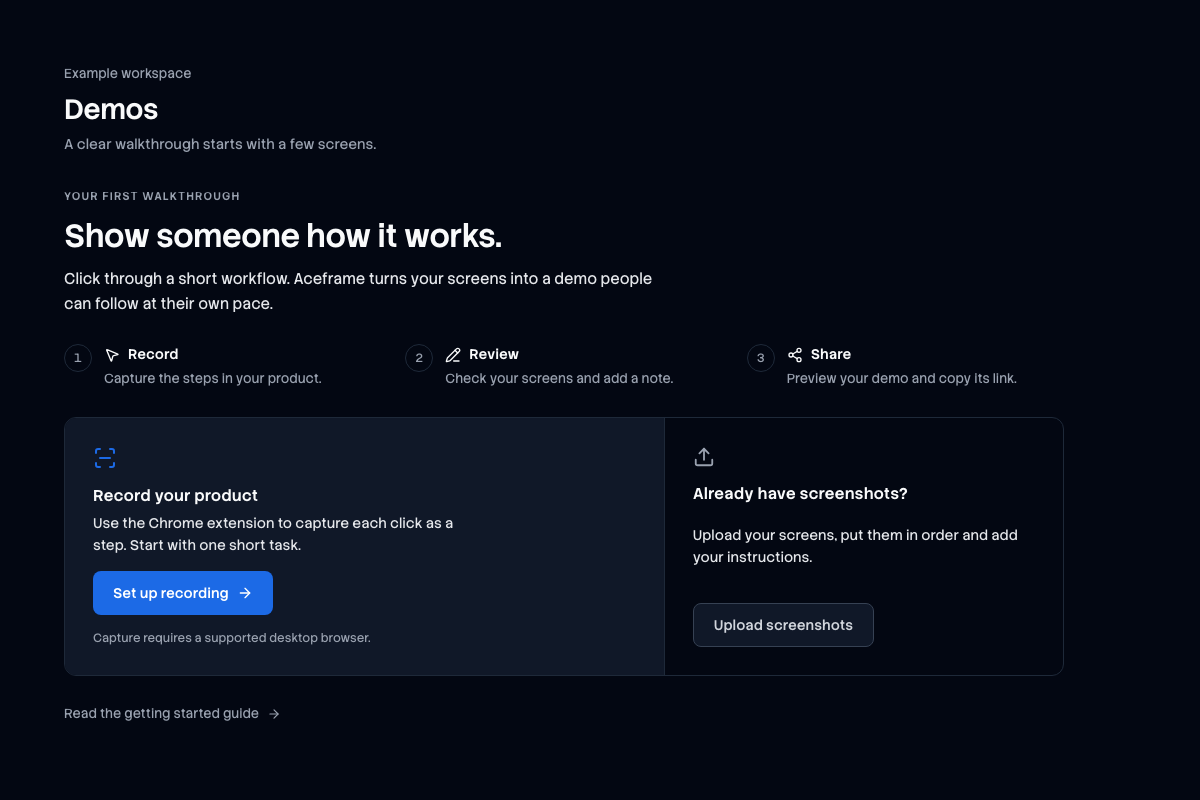
This is where the magic happens. The browser extension records your clicks and takes a screenshot at each step automatically.

Here is how it works:

  1. Open your product in Chrome and navigate to the starting screen.
  2. Click the extension icon in your browser toolbar and hit "Start Capture."
  3. Click through the workflow you want to demo - every click creates a new step.
  4. When you are done, click "Stop Capture."

Tips for a clean capture:

  • Close unnecessary tabs and notifications. You do not want a Slack notification popping up mid-capture.
  • Use realistic data. Demo accounts with names like "Test User" and "Company ABC" look unprofessional. Use realistic names and data that match your target audience.
  • Keep it focused. Aim for 5-12 steps. Demos with more than 15 steps tend to see significant drop-off. Shorter is almost always better.
  • Go slow. The extension captures each click, so take your time and be deliberate. You can always remove extra steps later.
  • Resize your browser window. A consistent window size (around 1280x800) produces the cleanest screenshots.

The capture process itself takes 30-60 seconds for a typical workflow.

Step 2: Customize and annotate in the editor

Once you finish capturing, the extension syncs your steps to the web editor. This is where you turn raw screenshots into a polished demo.

Key customization options:

  • Add text annotations. Each step should have a brief description telling the viewer what to do or what they are seeing. Keep annotations to 1-2 sentences.
  • Highlight click targets. Use hotspots or highlights to draw attention to the element the viewer should click.
  • Reorder or delete steps. Captured an extra click by accident? Just delete that step. Want to rearrange the flow? Drag and drop.
  • Add your branding. Upload your logo, set your brand colors, and choose a theme that matches your website.
  • Set up lead capture. Optionally add a form to collect viewer information (more on this in our lead capture guide).

Best practices for annotations:

DoDo Not
Use action-oriented language ("Click the Create button")Write paragraphs of explanation
Highlight the specific element to clickLeave viewers guessing where to click
Match your brand voice and toneUse generic, robotic language
Keep each annotation under 20 wordsOverload steps with information
Number your steps clearlyAssume context from previous steps

The editing process typically takes 30-60 seconds once you get familiar with the tool.

Step 3: Publish and share

With your demo customized, you are ready to publish. Most platforms give you several sharing options:

  • Direct link. A URL you can share via email, Slack, or social media.
  • Website embed. An iframe or JavaScript snippet to embed the demo on your website, landing page, or docs.
  • Email embed. A thumbnail with a play button that links to the full demo.
  • CRM integration. Attach demos to deals in Salesforce, HubSpot, or other CRMs.

Where to use your demos:

  1. Product pages. Embed demos on feature pages so visitors can try before they buy.
  2. Sales outreach. Include a demo link in cold emails to boost reply rates.
  3. Help center. Replace static screenshots with interactive walkthroughs.
  4. Onboarding emails. Guide new users through key features.
  5. Investor decks. Show your product in action instead of just talking about it.
  6. Job postings. Let candidates experience your product before applying.

Publishing takes about 10 seconds - one click and your demo is live.

What makes a great interactive demo?

Speed of creation matters, but quality matters more. Here is what separates good demos from great ones:

Does your demo tell a story?

The best demos follow a narrative arc: problem, solution, result. Start by showing the pain point ("Imagine you need to onboard a new team member"), walk through the solution ("Here is how you set up their account in 3 clicks"), and end with the payoff ("Now they have access to everything they need").

Is your demo the right length?

Data from Wistia shows that median engagement for business videos drops to 50% after just 60 seconds. Interactive demos hold attention longer than passive video, but you should still respect people's time.

Recommended step counts by use case:

Use CaseIdeal StepsWhy
Sales outreach5-8Short attention span, need to hook fast
Product page embed8-12Visitors are already interested, give more detail
Onboarding walkthrough10-15Users are motivated to learn
Feature deep-dive12-20Targeted audience wants comprehensive coverage

Are you tracking the right metrics?

Once your demo is live, pay attention to:

  • Completion rate. What percentage of viewers finish the entire demo? Aim for 60%+.
  • Drop-off points. Which step do people abandon? This tells you where your demo loses interest or gets confusing.
  • Time per step. Steps where people linger may need clearer instructions.
  • Lead conversion. If you are using lead capture forms, track how many viewers convert.
  • Click-through rate. For demos shared via email, how many recipients actually open the demo?

How do you optimize demos for better engagement?

Start with your strongest feature

Do not build up to the "good part." Put your most impressive feature or workflow in the first 3-4 steps. According to the Demand Gen Report, B2B buyers are evaluating multiple solutions simultaneously. You have seconds to prove your product is worth their time.

Use personalization when possible

Demos that feel personalized perform dramatically better. If you are sending a demo to a specific prospect, consider:

  • Using their company name in sample data
  • Showing features relevant to their industry
  • Customizing the welcome message

Keep the UI clean

Remove any browser clutter, bookmarks bars, or unnecessary UI elements before capturing. Your demo should look clean and professional.

Add a clear call-to-action at the end

Every demo should end with a next step. "Start your free trial," "Book a demo call," or "Explore more features." Do not leave viewers wondering what to do next.

What tools make this process easiest?

Aceframe is designed specifically to make this three-step process as fast as possible. The Chrome extension captures clicks automatically, the web editor gives you a clean customization interface, and publishing is one click. The free plan includes 15 demos, so you can try the full workflow without paying anything.

Other tools like Storylane, Arcade, and Supademo follow a similar capture-edit-publish flow, but vary in speed, complexity, and pricing. The key is to pick a tool that matches your team's technical comfort level and the complexity of demos you need to create.

Common mistakes to avoid

1. Trying to show too much. The most common mistake is cramming your entire product into one demo. Focus on one workflow or feature per demo. Create multiple demos for different use cases.

2. Skipping the annotation step. Raw screenshots without context are confusing. Always add brief, clear annotations to guide the viewer.

3. Using stale data. If your product UI has changed since you captured the demo, your demo looks outdated and untrustworthy. Recapture demos when you ship major UI updates.

4. Forgetting mobile viewers. A significant portion of your audience will view demos on mobile devices. Test your demos on mobile before publishing.

5. Not tracking performance. If you are not looking at completion rates and drop-off points, you are flying blind. Use the analytics built into your demo tool to iterate and improve.

6. Gating too early. Putting a lead capture form before the demo starts kills completion rates. If you use lead capture, place it after step 3-5 so viewers get a taste of the content first.

FAQ

Do I need design skills to create an interactive demo?

No. Modern interactive demo tools handle the design for you. The browser extension captures pixel-perfect screenshots of your actual product, and the editor provides templates and themes for annotations. If you can click through your product and type a sentence, you can create a demo.

How often should I update my interactive demos?

Update your demos whenever you ship a significant UI change to the features shown in the demo. For most teams, that means reviewing demos monthly or quarterly. Stale demos with outdated screenshots erode trust with prospects.

Can interactive demos replace live sales demos?

They complement live demos rather than replace them. Interactive demos are best for the early stages of the buyer journey - letting prospects self-serve and qualify themselves. Live demos are still valuable for complex deals where prospects have specific questions. Many teams use interactive demos to warm up prospects before the live call, which makes the live demo more productive.

What is the ideal length for an interactive demo?

For sales outreach, aim for 5-8 steps that can be completed in 60-90 seconds. For product pages, 8-12 steps work well. The key metric is completion rate - if fewer than 50% of viewers are finishing your demo, it is probably too long.

How do interactive demos compare to video for engagement?

Interactive demos consistently outperform video. TechSmith research found that while 83% of people prefer watching video over reading text, only 20% complete videos over 2 minutes long. Interactive demos solve this by keeping viewers actively engaged - they are clicking and exploring rather than passively watching. Forrester reports that interactive demos increase conversion rates by 25-40% compared to static content.

Ready to create your first interactive demo?

15 free demos. No credit card required. Set up in 60 seconds.

Start for free

Ready to create your first demo?

Sign up for free and launch your first interactive demo in minutes.

Get started free